Installation guide
Install Tuck on your Mac.
The current installer is for Apple silicon Macs running macOS 14 or later. Choose Apple menu → About This Mac to check your chip and macOS version.
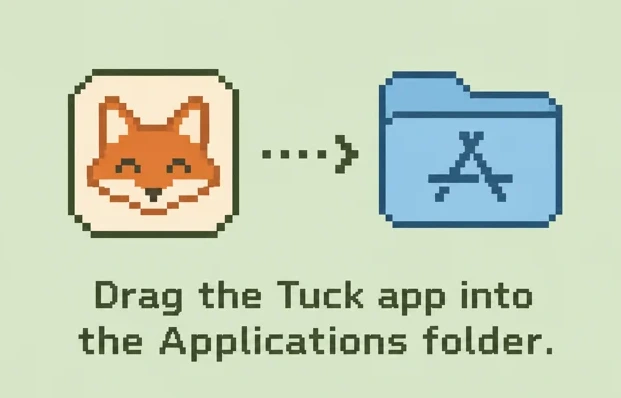
Move Tuck into Applications.
Open the downloaded .dmg and drag Tuck into Applications. Eject the disk image, then open Tuck from Applications.
If macOS shows a verification warning at either step, follow the instructions below.
If macOS asks you to verify Tuck.
This release hasn’t been signed with an Apple Developer ID or notarized. If macOS says it cannot verify the developer or check the download for malicious software, continue only if you trust the copy you downloaded.
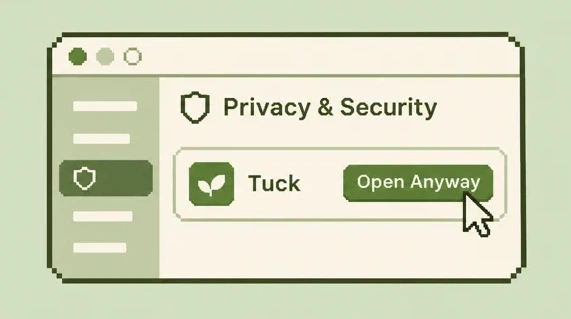
- Dismiss the warning and open System Settings → Privacy & Security.
- Under Security, look for the item you just tried to open. If Open Anyway appears for it, select it.
- Confirm Open and authenticate if asked. If the disk image opens, continue by dragging Tuck into Applications. Once Tuck launches, you’re done.
If macOS says Tuck will damage your computer or is damaged, leave it closed and contact the developer.